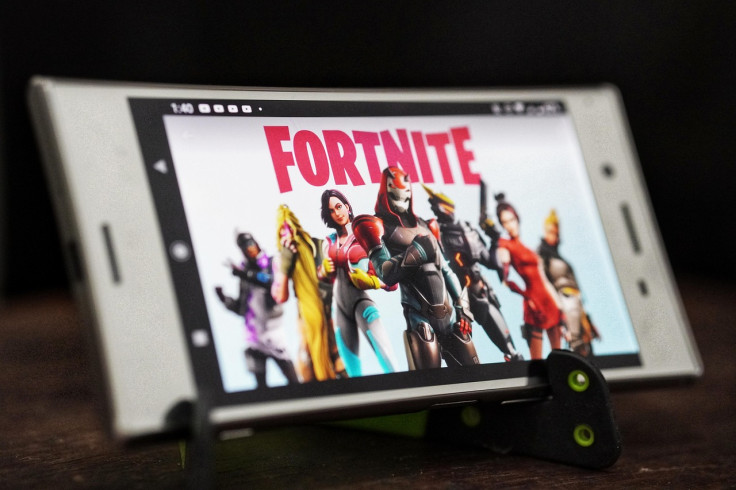
Performance Mode "Fortnite" is designed to maximize FPS while minimizing CPU load, shadows, and unnecessary visual effects, giving competitive players an edge. By switching from DX12 to Performance Mode, mid-range PCs gain 20–50% higher frame rates without sacrificing gameplay smoothness. "Fortnite" high FPS setups, including Rendering Mode: Performance and View Distance: Medium, can push 240+ FPS on GPUs like the RTX 3060.
Optimizing "Fortnite" PC settings 2025 emphasizes low latency over high-fidelity visuals, ensuring faster input response and better build battles. Competitive gamers benefit from turning off shadows, reducing post-processing, and fine-tuning refresh rates. Even minor adjustments to texture, effects, and anti-aliasing can dramatically reduce GPU overhead. With the correct settings, players experience a smoother experience, making "Fortnite" Performance Mode essential for anyone looking to dominate online matches.
Rendering and Visual Settings for 'Fortnite' High FPS
Optimizing visual settings is the first step to unlocking "Fortnite" high FPS on PC. Performance Mode renders directly on the GPU, boosting FPS by up to 30% compared to DX12 and helping maintain smooth gameplay during build fights, intense edits, and late-game rotations. Choosing the right visual settings ensures minimal input lag, prevents frame drops, and keeps your character movement crisp, which is crucial in high-pressure competitive scenarios.
- Rendering Mode: Performance — Direct GPU rendering bypasses heavy CPU calculations, allowing your graphics card to handle the bulk of the workload. This reduces stuttering during high-action sequences, especially when multiple players are on screen or rapid building occurs.
- Resolution: Native 1080p or 1440p; disable V-Sync and cap FPS at your monitor's refresh rate to reduce input lag. Maintaining native resolution keeps visuals sharp while avoiding the GPU strain of upscaling or downscaling, which can impact frame stability.
- View Distance: Medium — Balances visibility of distant opponents with performance. Ultra settings may look impressive, but they often lead to FPS drops and slower rendering of enemy movement, putting competitive players at a disadvantage. Medium ensures you see essential objects and players without sacrificing speed.
- Shadows: Off — Shadows are among the most resource-intensive settings. Turning them off eliminates unnecessary GPU load, giving your system more headroom to render fast-moving builds and projectiles accurately.
- Anti-Aliasing: Medium — Smooths jagged edges on character models and structures without the high GPU demand of ultra settings. Medium anti-aliasing strikes a balance between visual clarity and frame rate consistency, preventing distracting visual artifacts while maintaining a high FPS.
- Additional Tips: Disable motion blur to reduce visual distractions and prevent minor FPS dips during fast camera movements. Turning on "Show FPS" allows real-time monitoring, helping you identify performance bottlenecks quickly. Reducing effects such as post-processing and ambient occlusion further frees up GPU resources for smoother gameplay, particularly during chaotic late-game fights.
These settings ensure your system prioritizes frame rate over visual fidelity, a critical factor for competitive "Fortnite" matches. By combining Performance Mode with optimized resolution, view distance, and selective effects, players can achieve consistently high FPS, lower latency, and a responsive experience that maximizes their chances in fast-paced tournaments.
System Tweaks and 'Fortnite' PC Settings 2025
Beyond in-game visuals, system-level adjustments can amplify Performance Mode benefits and maintain consistent high FPS in "Fortnite". Even with optimized in-game settings, GPU and CPU performance can be affected by background processes, power management, and OS-level features. Modern GPUs and operating systems offer tools that allow players to squeeze out extra frames while reducing input lag, ensuring that every build, edit, and shot is registered as quickly as possible.
- NVIDIA Control Panel: Set Low Latency Mode to Ultra to minimize render queue delays and ensure your actions appear on-screen almost instantly. Set Power Management Mode to Max Performance so your GPU consistently runs at full capability during intense battles, preventing sudden FPS drops.
- Windows Settings: Disable Game Bar overlays and notifications, as they consume CPU cycles and can cause stuttering. Enable Hardware-Accelerated GPU Scheduling (HAGS) to reduce latency by allowing the GPU to manage its memory independently, improving responsiveness, particularly on high-refresh-rate monitors.
- Texture, Effects, and Post Processing: Lowering these settings reduces GPU load and prevents FPS spikes and dips during complex build fights or endgame chaos. Maintaining simple textures and minimal effects helps achieve 300+ FPS on mid-range to high-end PCs while ensuring smooth rendering of enemy movements and structures.
- Best Graphics "Fortnite" Compromise: Competitive players often sacrifice extreme visual fidelity for responsiveness. Disabling fancy effects, shadows, and unnecessary post-processing ensures consistent FPS and faster reaction times, which can make the difference in high-level matches.
- Additional Tips: Keep background apps closed, keep GPU drivers up to date, and set your monitor to its highest refresh rate for the smoothest display. Use "Show FPS" and latency overlays to monitor performance in real time and tweak settings as needed for tournaments or practice sessions.
These system tweaks complement in-game settings, creating a balanced approach to maximize FPS while keeping input lag minimal. By combining optimized graphics with OS and GPU adjustments, players can consistently reach the high FPS targets required for competitive "Fortnite" play, ensuring each action is fast, accurate, and reliable.
Advanced Features and Latency Reduction
"Fortnite" Performance Mode also leverages CPU and GPU features for smoother gameplay and lower system latency. Activating multithreaded rendering and latency-reducing tools ensures minimal frame drops and faster reaction times.
- Multithreaded Rendering: On; utilizes all CPU cores, preventing 1% low FPS drops.
- NVIDIA Reflex + Boost: Cuts system latency by ~20ms on RTX 20/30/40 series cards.
- DirectX 11 Fallback: Use if Performance Mode stutters; maintain smooth gameplay.
- Motion Blur: Off; prevents visual distractions and minor FPS drops.
- Show FPS: On; monitor performance in real time to fine-tune settings.
By combining these advanced features with optimized visual and system settings, "Fortnite" high FPS becomes stable, consistent, and reliable.
Conclusion
Performance Mode "Fortnite," combined with fine-tuned "Fortnite" high FPS settings and "Fortnite" PC settings 2025, transforms gameplay for competitive players. Optimizing rendering, system tweaks, and latency-reduction features ensures smooth, responsive play during every match.
Even when sacrificing ultra-realistic graphics for speed, the advantages in input response and frame stability give players a measurable edge. Mastering these settings allows "Fortnite" users to focus on building, shooting, and strategy, rather than battling lag or jitter. By understanding how to balance FPS, graphics, and latency, players can maintain consistent performance and gain the competitive edge needed to dominate in fast-paced matches.
Frequently Asked Questions
1. Performance vs DX12 "Fortnite" high FPS?
Performance Mode boosts FPS up to 30%, while DX12 offers prettier visuals but puts a heavier load on the CPU. Performance Mode is ideal for competitive play. DX12 may be preferred for cinematic graphics in casual matches. Choosing depends on whether responsiveness or visual quality matters most.
2. Best "Fortnite" PC settings 2025 for 144Hz?
Rendering Mode: Performance with Shadows Off ensures maximum frame rate. Enable Reflex to reduce latency. Match the FPS cap to the monitor's refresh rate. Adjust texture/effects to low for stable 144Hz performance.
3. Does HAGS boost performance mode "Fortnite"?
Yes, Hardware-Accelerated GPU Scheduling reduces GPU scheduling latency. Players typically gain around 15ms faster input. Works on both NVIDIA and AMD GPUs. Combine with other tweaks for optimal FPS and responsiveness.
4. Optimal FOV for best graphics "Fortnite"?
Set FOV between 90–100° for balanced peripheral vision and performance. Higher FOV increases situational awareness but may slightly reduce FPS. Lower FOV stabilizes frame rates. Adjust based on personal preference and monitor size.
Originally published on Tech Times