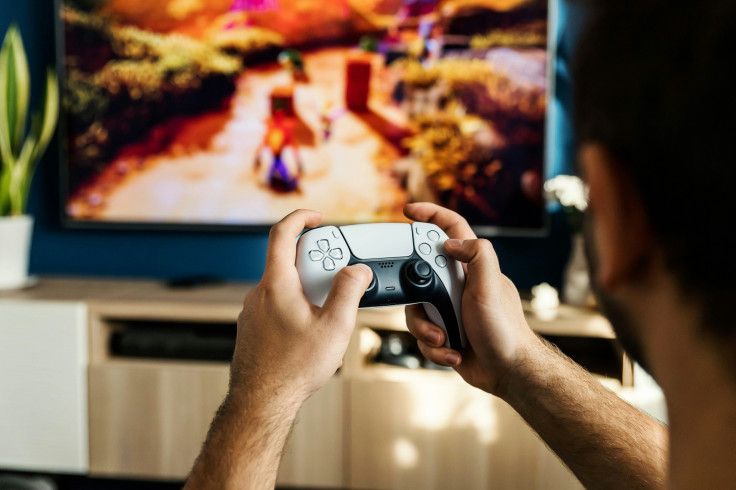
Console performance settings can dramatically change how a game feels in your hands. Small adjustments at the system and display level unlock smoother frame rates, better frame pacing, and noticeably reduced input lag across PS5, Xbox Series X/S, and Nintendo Switch titles.
Many players overlook how limited GPU and CPU cycles are divided between visual effects and responsiveness. Strategic tweaks prioritize stable 60–120 FPS targets, cleaner frame times like 16.7ms at 60 FPS or 8.3ms at 120 FPS, and tighter controller feedback. When optimized correctly, gameplay feels sharper, faster, and far more precise.
7 Console Performance Settings List for Faster, Smoother Gameplay
Below are seven console performance settings that help reduce input lag and improve responsiveness without unnecessary visual strain.
1. Game Mode on TV or Monitor – Essential Console Performance Settings
Game Mode is one of the most important console performance settings you can enable. It disables heavy post-processing effects like motion interpolation, smoothing filters, and artificial sharpening that can add 20–80 milliseconds of input lag. Look for ALLM (Auto Low Latency Mode) support and HDMI 2.1 compatibility. When active, Game Mode improves frame delivery, enhances controller polling responsiveness, and ensures the display prioritizes speed over cinematic effects.
2. Performance Mode Priority – Reduce Input Lag in Game Menus
Most modern titles offer a Performance or FPS mode. Selecting this option shifts the focus from visual fidelity to smoother frame pacing and 60 FPS or even 120 FPS targets. Dynamic resolution scaling may lower output from 4K to 1080p–1440p internally, but the trade-off delivers buttery animations and consistent hit registration. For competitive shooters and esports-focused titles, stable frame timing matters more than ultra-detailed shadows.
3. Enable 120Hz Output – Console Performance Settings for High Refresh Rates
If your display supports HDMI 2.1 bandwidth, enable 120Hz in your console's system display settings. Higher refresh rates allow frame rates between 100–120 FPS, reducing motion blur and lowering perceived input lag. Pairing 120Hz output with compatible TVs or monitors dramatically improves responsiveness in supported games like Call of Duty or Battlefield. Even when frame rates fluctuate slightly, higher refresh ceilings smooth out motion clarity.
4. VRR Adaptive Sync – Reduce Input Lag and Screen Tearing
Variable Refresh Rate (VRR) matches your TV's refresh rate to the console's frame output within a 48–120Hz window. This eliminates screen tearing and reduces stuttering caused by frame time spikes. Displays certified for AMD FreeSync or G-Sync Compatible offer smoother motion clarity. When VRR is active, input lag often drops because the system avoids forced frame duplication or synchronization delays.
5. Controller Deadzone Adjustment – Precision Input Optimization
Lowering controller deadzones improves responsiveness and reduces unnecessary stick travel. Many consoles allow adjustments between 0.05 and 0.15 sensitivity ranges to refine movement precision. Balanced settings prevent stick drift while maintaining twitch aiming control. Linear response curves typically offer more predictable acceleration compared to heavily boosted curves, helping reduce input lag perception during quick movements.
6. HDR Performance Calibration – Reduce Input Lag Without Losing Clarity
Improper HDR calibration can introduce brightness inconsistencies and even minor performance penalties. Using HGIG tone mapping and console-led HDR calibration ensures accurate peak brightness targets around 1000 nits while preserving shadow detail. Switching between SDR and HDR improperly may cause color washout and minor latency inconsistencies. Proper calibration keeps visuals sharp without sacrificing performance consistency or frame pacing.
7. Resolution Scaling Target – Balance Graphics and FPS Stability
Dynamic resolution scaling set to roughly 80–90% of native output can yield 5–15 FPS improvements. On 1440p displays, internal rendering closer to 1080p often maintains clarity through upscaling technologies like FidelityFX FSR or temporal reconstruction. Reducing rendering overhead frees GPU bandwidth for stable frame times and smoother gameplay. In competitive environments, slightly softer visuals are worth the trade for reduced input lag and frame consistency.
Reduce Input Lag with TV and Display Optimization
Console performance settings extend beyond the console itself. Disabling motion blur, smoothing filters, and extra post-processing on your TV removes latency penalties that can range from 30–100 milliseconds.
Ensure firmware updates are installed on both your console and display. VRR windows, HDMI-CEC automation, and Auto Low Latency Mode all contribute to consistent frame delivery and tighter controller feedback.
HDR tone mapping also plays a role in responsiveness. Console-led calibration prevents unnecessary dynamic adjustments that can slightly delay image processing. When tuned correctly, HDR should enhance visibility without adding latency.
Console Performance Settings Graphics Tweaks That Improve FPS
Reducing in-game graphics presets is one of the simplest ways to reduce input lag. Lowering shadow quality from high to medium decreases GPU load and stabilizes frame pacing without severely impacting visibility. Disable heavy post-processing effects such as motion blur, depth of field, bloom, chromatic aberration, film grain, and excessive lens flare. These features consume processing power and can cause small but noticeable frame dips during fast action.
Adjust draw distance and Level of Detail (LOD) to medium settings if available. This reduces texture streaming stutters and memory spikes while maintaining competitive sightlines. Resolution scaling also remains a powerful lever. Internal rendering at 0.8x native often looks sharp after upscaling but reduces GPU strain significantly. When combined with VRR and 120Hz output, it delivers smoother gameplay with fewer frame time spikes.
Optimize Console Performance Settings for Competitive Gameplay
Optimizing console performance settings is about balancing visual quality and responsiveness. Stable frame times, reduced input lag, and predictable controller response create a smoother competitive experience than maxed-out visuals ever could.
By activating Game Mode, enabling VRR, adjusting resolution scaling, and fine-tuning graphics presets, players unlock the full potential of their hardware. Small, targeted adjustments translate into faster reactions, clearer motion, and more consistent performance across every match.
Frequently Asked Questions
1. What are the best console performance settings to reduce input lag?
Enable Game Mode on your TV and select Performance mode in your game settings. Turn on VRR and 120Hz output if your display supports HDMI 2.1. Lower unnecessary post-processing effects like motion blur. Adjust controller deadzones for faster stick response.
2. Does lowering resolution actually improve console FPS?
Yes, dynamic resolution scaling reduces GPU workload and can increase frame rates by 5–15 FPS. Lower internal resolution allows more stable frame pacing. Upscaling techniques help maintain image clarity. The trade-off often improves responsiveness significantly.
3. Is 120Hz worth it for console gaming?
If your TV or monitor supports it, 120Hz reduces perceived input lag and improves motion clarity. Games that support 120 FPS feel smoother and more responsive. Even fluctuating frame rates benefit from higher refresh ceilings. It is especially helpful in competitive shooters.
4. Can HDR increase input lag?
Poor HDR calibration can add minor latency due to extra image processing. Using proper HGIG tone mapping and console-led calibration minimizes this issue. Keep firmware updated on both your TV and console. Proper HDR setup maintains performance while improving visual clarity.
Originally published on Tech Times